
From the Home Page, click the Administration tab on the Application Function Bar. This opens the Administration area in a new tab.
Icons
In the Function Bar, items display with a few different icons. The table below describes what each symbol means.
|
Icon |
Description |
|---|---|

|
Indicates the item is a folder. Click to expand and see its contents. |

|
Indicates an open folder. Click to close the folder and hide its contents. |

|
Indicates a code that can be opened and edited in the main work area of the screen. |

|
Indicates an inactive folder. |

|
Indicates an open, inactive folder. |

|
Indicates an inactive code. |
Breadcrumbs
The Administration area includes several options for drill-down navigation, so each page displays a breadcrumb trail at the top of the page. See the example below:

The breadcrumb trail displays the names of all the pages you opened that took you to the current page. Each page name in the breadcrumb trail is a link back to that page.
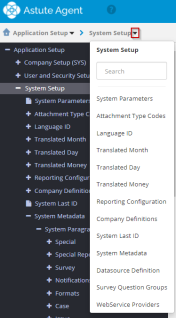
Additionally, clicking the caret next to the page name displays a drop-down list of pages or options under that page name, as well as a Search box. You can use the Search feature to look for a specific page or section by name.
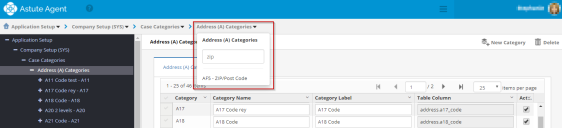
When using the Search feature for category codes, you can search for a code without knowing the category code hierarchy.
Click the Home button to return to the main Administration page.