
Emplifi Agent allows you to create correspondence using the Letters functionality. Letters can be sent by email or printed and mailed to contacts associated with a case.
You can add letters to a case manually or based on suggestions configured by your system administrator. Letters can be related to a specific issue or to the entire case.
To see whether suggested letters are available based on the case data entered, refer to ESP.
When suggested letters are available, you must accept the suggestion before making changes. Accepting the suggestion saves the letter to the case.
Adding new letters
You can add additional letters to a case as needed.
To add a new letter to a case:
-
From the page banner, click Add Item and select Letter.
Or
-
On your keyboard, simultaneously press Ctrl + I, then press L.
A new letter appears in the Case sidebar and opens in the Case window. Enter the required information to create the letter.
Preparing and editing letters
After entering the basic information for a letter, prepare the letter. Preparing a letter generates the content using the selected template and merges it with case data.
To prepare a letter:
-
Click Prepare Letter on the Letters section banner.
Or
-
On your keyboard, simultaneously press Ctrl + Shift + P.
The generated letter appears in the HTML editor.
Prompts
Some letter templates request additional information during the preparation process. Enter the requested information and select OK to continue.
Missing values
A template may attempt to insert data that is not present on the case. If this occurs, the system displays the following message:
One or more missing values were inserted. Search for NULL to replace them.
Search for the word NULL in the letter to locate missing values.
You can then:
-
Return to the case, add the missing values, and prepare the letter again
-
Replace the missing values directly in the letter editor
Editing an HTML letter
Prepared letters in plain text or HTML format can be edited directly in the Letters view.
The lower portion of the window displays the letter editor. The toolbar above the editor allows you to format text, preview the letter, print the letter, and insert your signature.
You can also insert images using drag and drop or by copying and pasting them into the editor.
Select Save on the Case page banner after making changes.
Letter editor toolbar
|
Button |
Description |
|---|---|

|
Specifies the printer used for printing. |

|
Displays a preview of the letter in a new window. |

|
Allows you to select a printer to print the paragraph as text. For more information, refer to the Select Server Side Printer section in Fulfillment and Server-Side Printing. |

|
Applies bold to the selected text. |

|
Applies italics to the selected text. |

|
Underlines the selected text. |

|
Applies strikethrough to the selected text. |
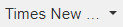
|
Displays the Font Family menu where you can select the type of font for the selected text. |
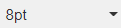
|
Displays the Font Sizes menu where you can select the size of the font for the selected text. |

|
Displays the Text Color menu where you can select the color of the selected text. |

|
Displays the Color dialog where you can select a highlight color for the selected text. |

|
Displays an Insert Link dialog where you can enter the URL, the text to display in the message, a title, and select a target. |

|
Displays the Insert/Edit Image dialog which allows you to insert an image into your paragraph. You can set the source, give the image a description, and enter the dimensions for the image. |

|
Inserts a blank line for you to type your next paragraph of text. |

|
Opens the Table menu which allows you to add a table to the letter. Also, you can modify or delete an existing table. |

|
Justifies the selected text to the left of the page. |

|
Justifies the selected text in the center of the page. |

|
Justifies the selected text to the right of the page. |

|
Inserts a number list where the cursor is in the text. |

|
Inserts a bulleted List where the cursor is in the text. |

|
Decreases the indentation of the paragraph after applying the right indent. |

|
Increases the indentation of the paragraph to the right. |

|
Displays the Source code dialog where you can view and edit the HTML code. |

|
When text is copied from the web or a Word file, click the Paste as Plain Text button to paste the text into the letter/paragraph after removing all HTML formatting from the text. |

|
Adds your script signature to the letter. The signature name must be entered on the User Options screen in the Letter Signature field. |
|
|
Use AI Assistant to change the text length and tone of voice, and/or use context to expand a block of highlighted text in the letter. You must enable the feature in your Configuration. For more information, refer to Configuring AI Tools. |
Re-preparing a letter
An unsent letter can be prepared multiple times to reflect changes made on the case.
Select Prepare Letter each time you want to regenerate the letter. The system displays a warning that the current letter content will be replaced.
Resending or reprinting a letter
When a letter is resent or reprinted, the Date Sent field is updated with the current date. The previous date remains in the audit trail and is included in case reporting.
Optional and suggested paragraphs
Some letter templates support optional or suggested paragraphs based on case data.
When the letter is prepared, the Optional and Suggested Paragraphs window appears.
-
Suggested paragraphs display with check boxes so multiple paragraphs can be included.
-
Optional paragraphs display with option buttons so one paragraph can be selected.
The letter remains read-only until suggestions are accepted or rejected.
You can preview paragraphs by selecting a row and clicking Preview Paragraph.
Printing and previewing letters
Printing
Printing letters in Emplifi Agent depends on the type of letter that you are printing.
If the letter is being printed for proofreading only, select Do Not Set when prompted with the Set Date dialog. Clicking Set Date Sent locks the letter down and does not allow for changes.
HTML letters
HTML printing is determined by the settings for the Letter Type assigned to the letter.
Print preview
Selecting Print preview generates a preview according to the configuration defined by your administrator in Configuration: Fulfillment.
Preview types include:
-
Full
-
Quick First
-
Quick Only
Quick previews load faster and use fewer resources. When Quick First is selected, the preview window includes a Precise Print Preview option to generate the full version.
When performing a Print preview for a letter, the HTML letter displays in a browser window. This allows the user to use the default browser to preview the letter. The agent can view the pagination of the letter to determine if it is more than one page.
Letter fields
Letter fields may vary by organization. The following are the most common fields.
|
Field |
Description |
|---|---|
|
Std Letter ID |
Select the ID of the letter that you want to send. The Standard Letter ID defines the basic format and content of the letter. |
|
Letter Type |
The Letter Type is usually filled in with a default value based on the Standard Letter ID selected in the previous field. You can change this value if necessary. |
|
Letter Lang ID |
If your company supports multiple languages for callers, you can select the language in which this letter should be generated. This defaults to the Language ID entered on the standard letter definition. |
|
Issue |
If this letter is related to a specific issue on this case, you should select the issue number in this field. If the entry is general or related to the case as a whole, select "(No Issue)." |
|
Send To |
Select the address on the case to which this letter will be sent. This determines the address that will be used when the letter is being prepared. |
|
Email To |
If this letter is to be sent by email, enter the email recipients. If you type a partial name or email address, the system will check the list of system users and will display a list of possible matches. You may select an email address from the list. You can enter email addresses as the email address only or with a display name followed by the email address in brackets (<>). For example:
|
|
CC |
Enter the recipients you would like to carbon copy on the email. |
|
BCC |
Enter the recipients you would like to blind carbon copy on the email. |
|
Subject |
Enter a subject line for the email. A subject line may be automatically generated when the letter is prepared, if there is one set up on the Standard Letter definition. If you leave this field blank and if a subject is set up in your configuration settings, the subject may be generated for you automatically by the system. |
|
Proofed |
This flag indicates whether the letter has been verified for accuracy. Some organizations designate a particular person to be responsible for proofing the letters that are sent out. |
|
Ready |
Select this check box to indicate that the letter is ready to be picked, printed, or sent. It is used by batch fulfillment processes. Once this check box is selected, automatic spell check can run on the letter. If you have added a letter to a case but the letter should not be sent yet for some reason, clear the check box. This will keep the letter from being processed during batch fulfillment and restricts the automatic spell check process from running. |
|
Customized |
The value is read-only. |
|
Batch ID |
This read-only field shows the Batch ID if this letter was processed during batch fulfillment. |
|
Date Sent |
This read-only field shows the date on which a letter was printed or sent. |
|
Entered By |
This read-only value shows the name of the user who added the letter to the case. |
|
Date Entered |
This read-only field shows the date and time that the letter was added to the case. |
|
Changed By |
This read-only field shows the name of the user who last edited the letter. |
|
Date Changed |
This read-only field shows the date and time that the letter was last edited. |
Letters section banner
The Letters section banner contains the following options:
|
Option |
Option Name |
Description |
|---|---|---|

|
Add Attachments |
Allows you to add multiple case attachments to an email letter. Click Add Attachments to open Select Attachments window. Select each attachment you want to add to the letter and click Ok. The added attachments will display below the Subject field on the letter preview. |

|
Prepare Letter |
Prepares the letter by generating the defined letter template and merging it with information from the current case. The prepared letter will display in the HTML Editor portion of the view. |

|
Send Letter |
Sends the current letter via email. |

|
Send Letter Options |
Opens a dialog that allows you to edit the following fields:
You can also add attachments to the letter and edit the letter itself. When Reply All is used, the Send Letter Options dialog opens with the To, CC, and BCC fields automatically populated using the recipients from the original inbound email. You can review or modify these recipients before sending the message. |
When sending emails internally, save the case before adding an attachment. If you save the case after adding the attachment, the attachment is removed from the letter.
Letters section menu
The Letters section menu contains the following option.
|
Option |
Description |
|---|---|
|
Delete Letter |
Permanently removes the letter from the case. Letters that have a batch number assigned cannot be deleted. |
Deleting letters from a Case
To delete a letter from a case:
-
Navigate to the letter you want to delete.
-
Click the menu button to open the Letter section menu. Click Delete Letter.
-
In the Confirm Deletion dialog box, click Delete.
Letters with a batch number assigned cannot be deleted.
Working with Letters
Watch the following video to learn more about working with letters: