
Emplifi Knowledge is an optional system that can be used as a standalone solution or integrated with Emplifi Agent. Agent Assist is a feature of Emplifi Knowledge that allows Emplifi Agent users to interact with Emplifi Knowledge while working on a case.
To use Agent Assist, enter a question or phrase in the Agent Assist interface window. Emplifi Knowledge processes the request and displays a response in the interface window. Agents can then migrate relevant information from the response into the case.
If Agent Assist is configured to enable AutoComplete, a list of suggested responses appears as the user types. These responses are ranked by relevance. The agent can select the most appropriate response and include it in the case.
Examples
Scenario 1
A consumer contacts support for assistance. The agent opens a case, enters the caller information, and navigates to the Agent Assist interface where the consumer’s question is entered. Emplifi Knowledge returns relevant responses. The agent selects the appropriate response and applies it to the case.
When responses include configured code migrations, the defined categories are automatically migrated to the case. The agent can then complete the case by adding additional information or fulfillment items if necessary. This process can be repeated as needed.
Scenario 2
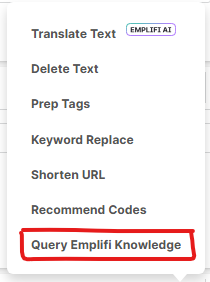
An agent working on a case needs information related to text or a code displayed in the case. The agent highlights the text and selects Query Emplifi Knowledge from the Text section menu. Agent Assist opens and displays responses related to the highlighted text.
Accessing Agent Assist
There are two ways to access the Agent Assist interface window:
-
On the ESP banner, click the Emplifi Knowledge button.
-
On the Text section menu, select the Query Emplifi Knowledge option.
Agent Assist can be accessed outside of a case.
Agent Assist controls
The following table describes the controls used when working with Agent Assist.
|
Control |
Description |
|---|---|

|
Displays the Agent Assist interface. This option appears when Emplifi Knowledge is installed and a case is open in Emplifi Agent. |
|
Allows the agent to highlight text in the Case Text section and query Emplifi Knowledge. If no text is highlighted, the currently focused item is used for the query. |

|
Enter a question or phrase to query Emplifi Knowledge. |

|
Submits the question to the Emplifi Knowledge engine and returns matching responses. |
|
Response pane |
Displays the results returned from Emplifi Knowledge. Responses may include suggested topics, documents, or images associated with the response. |

|
Applies information from the selected response to the current case. Possible results depend on system configuration and may include migrating categories, updating issues, or adding case text. Possible actions include the following:
Note: When Update Case is selected, migrated categories are validated against categories defined in Emplifi Agent. If an invalid category is detected, a dialog appears identifying the Category ID and invalid Category Code. When knowledge content is sent from Agent Assist using the Update Case action, the agent’s user details and email address are automatically included in the request. This provides additional context for downstream systems or workflows that receive the knowledge send event, such as external integrations or logging services. No action is required from the agent. |

|
Displays the current knowledge configuration. Selecting this option shows available knowledge configurations that can be used for the query. The default configuration used for a case is determined in one of the following ways.
For more information about driving categories and default configurations, refer to Emplifi Knowledge Configuration Editor. Agents can also manually select a different knowledge base from the configuration list. Note: When a different knowledge base is selected, it remains active until the case page is closed and reopened. After reopening the case, the knowledge base is determined again by the driving categories or the default configuration. If multiple languages are configured, separate touchpoints can be defined for each language in the Agent Assist configuration. Agents can select the appropriate touchpoint from the list to view responses in the desired language. |

|
Opens Agent Assist in a separate browser window or a maximized view. When the window is opened or maximized, the current session and conversation context remain active so the agent can continue working with the existing results. |

|
Returns the Agent Assist window to its original position if it has been moved. |

|
Closes the current Agent Assist interaction. |

|
Saves the current response as a personal bookmark. The user is prompted to enter a name before saving. |
|
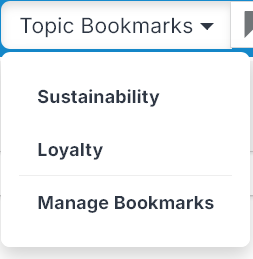
Displays saved bookmarks and allows the user to manage them. |
Submitting a question
To submit a request to Emplifi Knowledge:
-
Enter a question in the question field.
-
Select Search.
The question is sent to the Emplifi Knowledge engine. The results appear in the Agent Assist interface window.
The response returned should match the response that would appear if the same question were asked directly in Emplifi Knowledge.